

The challenge: Secure coding exams in LMS environments
Many instructors prefer proctored exams when assessing programming skills. Proctoring environments help support academic integrity by restricting access to external resources during exams.
However, when using a LMS together with CodeGrade, integrating both systems while keeping the student’s experience painless can be challenging. Students may still be able to navigate to previous assignments, view past feedback, or access course materials through the LMS interface. Even with proctoring tools enabled, this can make it difficult to guarantee a fully isolated exam environment. At the same time, the unauthorised use of LLMs during exams or proctored assessments has become an additional concern, as students may attempt to rely on external AI tools when such assistance is not permitted.
How to integrate CG and proctoring
A reliable workaround is to run the exam in a standalone CodeGrade course, separate from the regular course connected to the LMS environment.
Students can access the exam course on its own or through their LMS within a secure, proctored exam environment and login using details provided prior.
This setup provides two important benefits:
- The proctoring software locks down the testing environment
- The standalone CodeGrade course separates the exam from all previous coursework
As a result, students can complete the exam in CodeGrade while remaining fully within a secure, proctored workflow.
Setup overview
Setting up this workflow requires three main components.
1. Creating a standalone CodeGrade exam course
Instead of placing the exam in the regular LTI course, we’ll create a dedicated exam course in CodeGrade.
This ensures students cannot see any of their previous assignments or feedback during the exam.
2. Generating the student enrollment link
In the CodeGrade exam course:
- Go to Course Settings → Members
- Create a new Course Enrollment Link
- Set the role to Student
- Add an expiration date for the exam
- Copy the generated enrollment link
Students will use this link to join the exam course. You can choose to distribute this link a few days before the exam, or right in the room as the text begins.
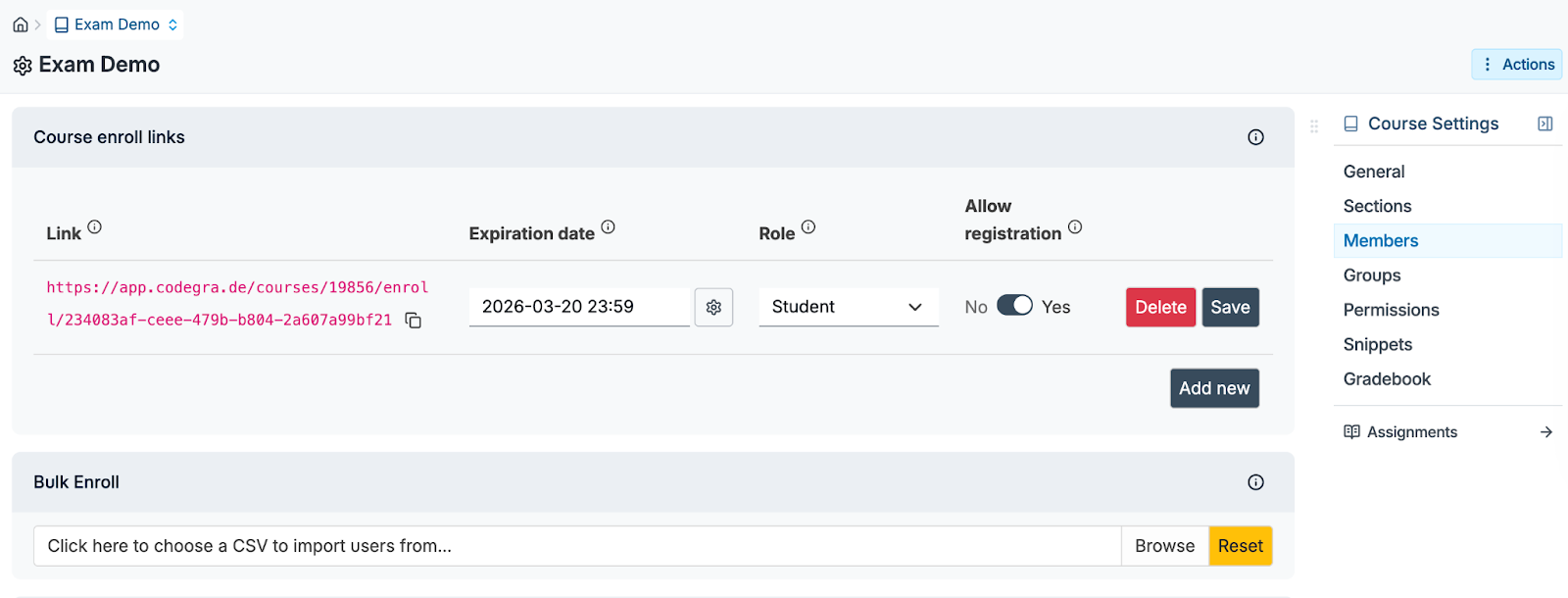
At this point depending on your LMS and proctoring you might choose to have students access the exam assignment directly through standalone CodeGrade, or you can integrate it into your LMS.
3. Creating the LMS “wrapper” assignment
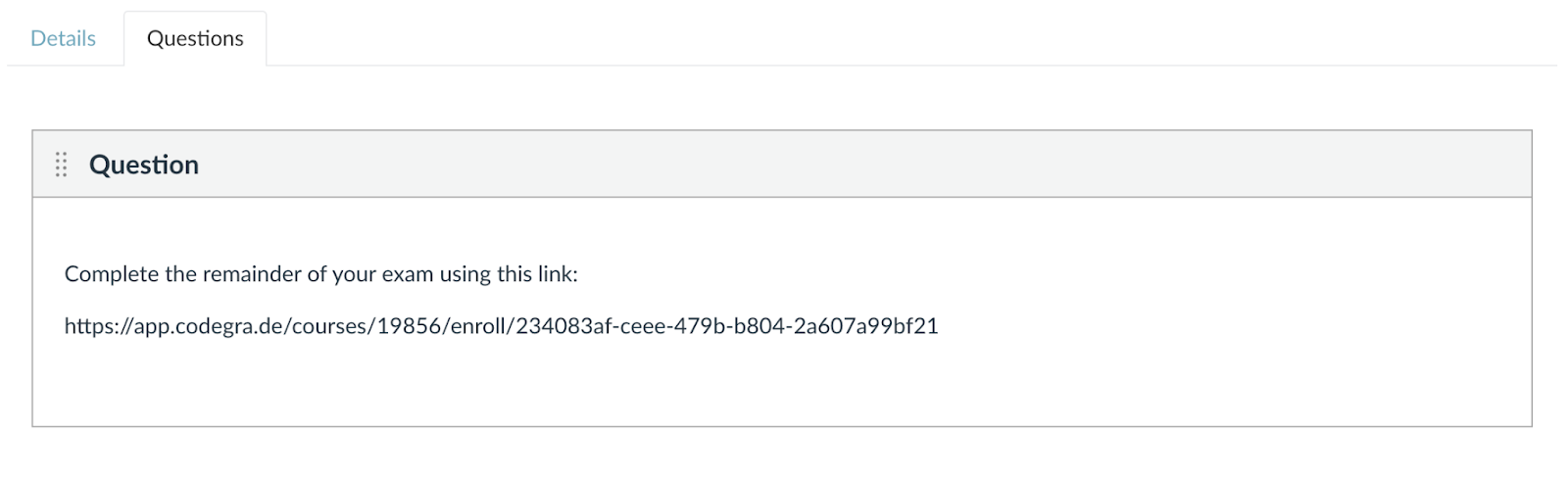
Next, add the link to your proctored testing environment. This assignment directs students to the standalone CodeGrade exam course, where the exam is delivered using the CodeGrade quizzes feature. These quizzes support programming-focused assessments, including coding tasks and automated grading, making them better suited for programming exams than standard LMS quiz tools.
Inside the wrapper assignment:
- Add instructions for the exam
- Paste the CodeGrade enrollment link
- Enable the proctoring tool
When students start the quiz, this prevents them from opening other applications or navigating outside the allowed environment.
4. Other considerations
You will also need to whitelist a number of URLs in your proctoring tool. Please contact our Support team for the updated list!
For even stronger exam security, instructors can also:
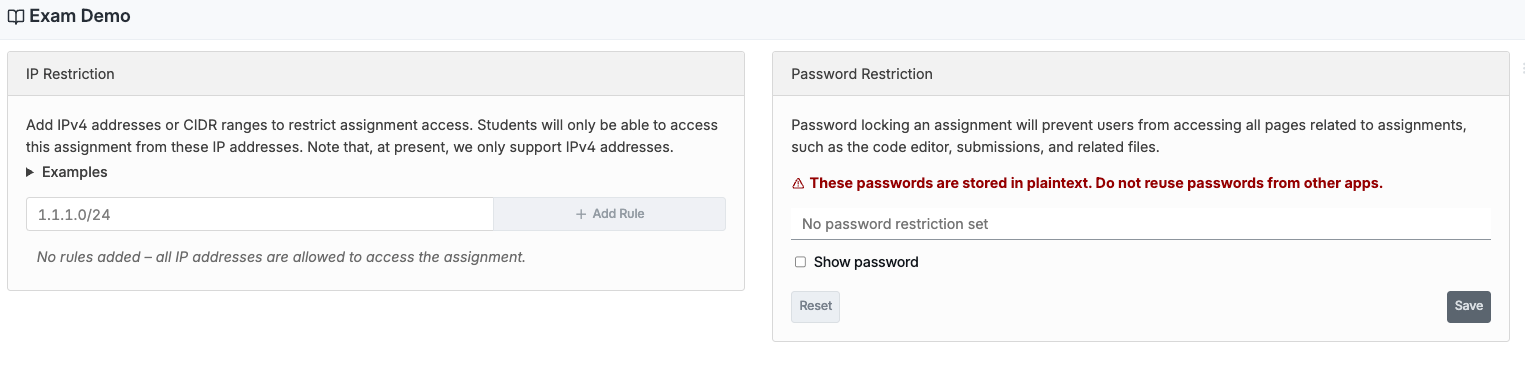
- Restrict exam access using IP restrictions (for example, testing center networks)
- Add separate passwords for the Canvas quiz and the CodeGrade assignment
What the student exam experience looks like
From the student’s perspective, the process is straightforward.
- Students access the exam through the enrollment link, through their LMS or within a secured proctored assessment environment that restricts access to external resources.
- The quiz instructions provide a link to the CodeGrade exam course
- Students join the course as a new user
- The exam assignment opens inside CodeGrade
They simply see the exam environment and begin working on the coding tasks.
Need help setting this up?
If you’re planning a proctored coding exam and want help setting up this workflow, reach out to our CodeGrade Support team at support@codegrade.com. We’re happy to guide you through the process and ensure everything runs smoothly before and during exam day.
%20(800%20x%20525%20px)%20(800%20x%20525%20px)%20(1).png)

%20(800%20x%20525%20px)%20(5).png)